BlogTechnology
Self-hosting small business apps on Proxmox
A practical setup for running internal apps on office hardware, with staff sign-in and a separate way to manage the server.
- By
- Wheelhouz
- Published
We wanted the next internal tool to get a hostname and an owner, not a new hosting design. AI makes it faster to build things like a dashboard or a form that replaces an email chain, but it doesn’t decide where they run or who fixes them. We set up one Proxmox host in the office so small apps could run separately while sharing the same route in.
A mini PC instead of a rack server
We used a Minisforum MS-A2 running Proxmox VE. The mini PC fit the office, and its multiple wired network ports let us put Proxmox management and hosted app traffic on separate connections. We used the two built-in 2.5 GbE ports and left the faster ports unused. It was more useful to have two separate connections than to chase a faster one.
Proxmox gave us a way to run small services in separate Linux containers. The reverse proxy, tunnel connectors, and first app didn’t all have to live in the same operating system. We could replace or restart a guest without rebuilding the host.
Two ways back in
For routine administration, we used Tailscale to reach the Proxmox web interface and SSH without exposing them to the internet. We also connected a separate GL.iNet KVM to the machine’s video and USB ports. The KVM has its own network connection and is reachable through Tailscale too. It gives us a remote screen and keyboard even when Proxmox itself isn’t reachable, including at the BIOS screen.
That distinction paid off during setup. We used the KVM to change the host’s management address, a job that would have cut off the very session we were working in if we’d relied on SSH alone.
One route in, a separate access decision for each app
Each app gets a place to run, a hostname, and a decision about who can use it. The route into the office stays the same, separate from the admin connection. Cloudflare Tunnel connects out from the office, so we didn’t need inbound port forwarding. Requests come through the tunnel to Caddy, which routes them to the right app by hostname.
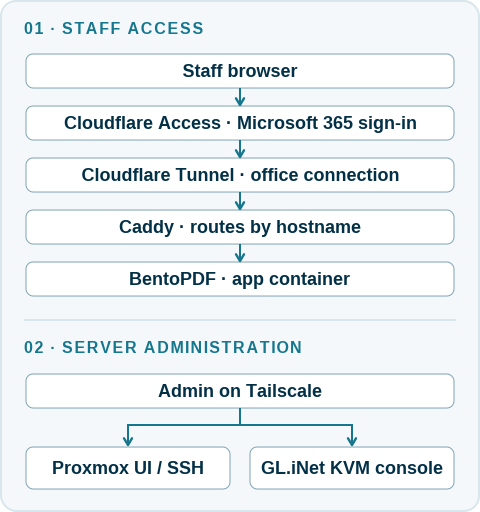
Cloudflare handles HTTPS for the browser. Inside the hosted-app network, the tunnel connector talks to Caddy over HTTP, and Caddy proxies to the app over HTTP. That’s the trust boundary in this setup: if the proxy and app were on a network we didn’t control, we’d use HTTPS on those hops too. We ran two tunnel connectors in separate containers. That lets us restart a connector without losing the tunnel, but both are on the same host, so it doesn’t protect against a host outage.
BentoPDF, an existing PDF utility, was the first app we hosted. We put Cloudflare Access in front of it and connected it to Microsoft 365, so staff sign in with the same work account they already use. There’s no separate BentoPDF account to create or password to manage. From outside the office, we checked that a signed-out request reached the Access sign-in page, not the app. We also tested a real Word-to-PDF conversion on the hosted app. Those are two checks worth repeating for any internal tool: does the app stay behind sign-in, and can staff complete the task once they’re in?
What we’d check before handing over the next app
- Test from outside the office. Open the app in a signed-out browser on another network. Check that it asks you to sign in. Then sign in as an ordinary staff user and complete the task the app is meant to replace. Loading the home page isn’t enough.
- Know what you can fix remotely. Before changing the Proxmox network, open the KVM console and make sure you can use it. It gives you a way back in when the host’s network settings are wrong, but it can’t help if the whole office loses connectivity.
- Give the app an owner and a way back. Write down what has to survive: a stateless utility may only need a known-good release and its settings; a tool that stores records needs a database backup and a tested restore. Make sure someone knows how to do that without relying on whoever wrote the first version.
Where we’d use it again
Our office has a UPS and a fiber connection, which helps make this practical for us. The UPS can carry the equipment through a brief power interruption, but neither it nor fiber gives us a second place to run the apps. An extended outage or a failed host can still take them offline.
Can this workflow wait if the office goes offline? If it can, one office server can be a good fit. If it can’t, decide where the app will run and how you’ll restore it before staff depend on it.