BlogTechnology
Giving our Proxmox server a remote power button
When our office mini PC froze during an update, a remote console wasn’t enough. A GL.iNet Fingerbot lets us press the power button without driving to the office.
- By
- Wheelhouz
- Published
During a routine system update, our Minisforum MS-A2 froze. We couldn’t get back into Proxmox to restart it. In our office hosting setup, we’d already made sure we could reach the server’s screen and keyboard without going through Proxmox. What we hadn’t accounted for was the one thing we’d reach for if we were standing in front of a frozen machine: the power button.
What the remote console can reach
Our GL.iNet Comet Pro is a small box with its own network connection. HDMI carries the Minisforum’s video out to the Comet; USB carries keyboard and mouse input back to the host. We reach the Comet over Tailscale. If we get a Proxmox network setting wrong, we can fix it at the console. But if the host won’t take keyboard input, the Comet can show us the screen without giving us a way to restart the machine.
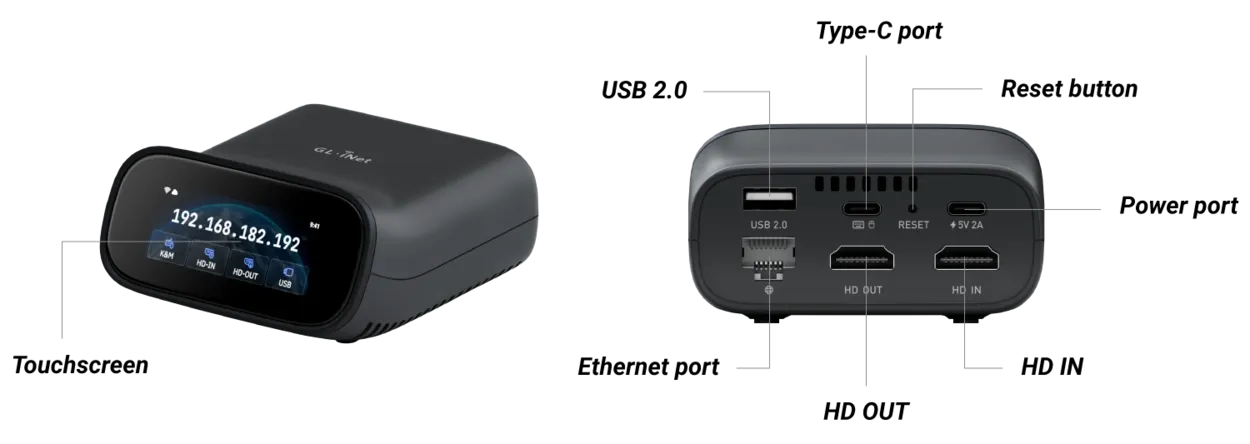
Comet Pro port guide: GL.iNet.
A finger on the actual button
It turns out the Comet Pro has an accessory for exactly this job. We ordered a GL.iNet Fingerbot, mounted it beside the power button on the Minisforum and connected it to the Comet. There’s no power cable to splice and no software to install on Proxmox. A little arm moves down and presses the same button we would.
One detail that’s easy to miss when unpacking it: the paired USB Bluetooth receiver is inside the Fingerbot’s lid. The receiver plugs into the Comet, not the server. The arm runs on a replaceable CR2 battery. That’s why the button still works when the Minisforum is shut down: neither the command nor the movement depends on the machine we’re trying to start.
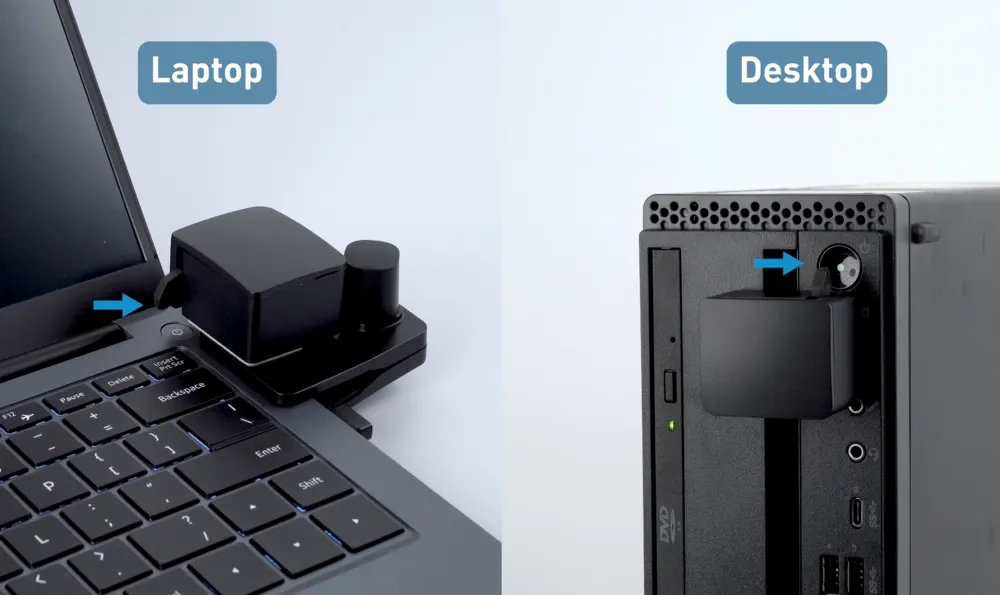
Mounting examples from GL.iNet’s Fingerbot installation guide, not photos of our Minisforum.
The fiddly part is the fit. Before sticking it down, line up the arm and use the test button under the lid to check its reach. In the Comet’s Accessories panel, you can choose a light or firm press and a duration of 0.5, 3 or 8 seconds. Those settings control a finger, not a reboot command. What happens next depends on the state of the machine.
When we’d use a long press
If only an app has stopped responding, work on that app or its guest. If the host console still responds, shut down cleanly there. A short button press on a running machine can request an orderly shutdown, depending on how the OS handles it. A long press that forces the host off gives neither Proxmox nor its guests a chance to finish writing. Especially during an update, a quiet screen alone isn’t a reason to do that.
For a genuinely frozen host, the Fingerbot gives us a last resort: hold the button to force the machine off, then use a separate short press to start it. The Comet gives us the other half of the job: we can watch the boot screen, see whether Proxmox comes back, then sign in and check that the guests and the apps they serve actually work. A power cycle gets us back to diagnosis; it doesn’t tell us why the host froze.
Before depending on this from home, we’d try one simple check during a maintenance window: shut the host down cleanly, reach the Comet from outside the office, and use a short press to bring the host back. That tests the mount, the battery and whether the KVM stays reachable with the server off, without pulling the rug out from under a running guest.
The Fingerbot can’t bring back office power or a dead internet connection. What it changes for us is narrower and more useful: when the office is fine and the mini PC is the thing that’s stuck, we no longer need someone to drive in just to press a button.